Build a Stop Signal Task in 30 seconds Fully Customizable
STEP 1
In this tutorial we will be adding a Stop Signal Task to a Psychexp project.
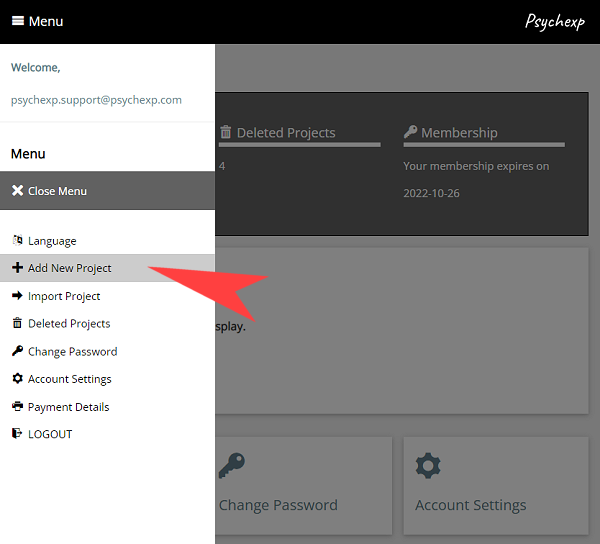
Let us begin by firstly logging in to psychexp and then select "Add New Project" from the menu.
Enter a project name and click submit. (We will call our project "PROJECT 1")
STEP 2
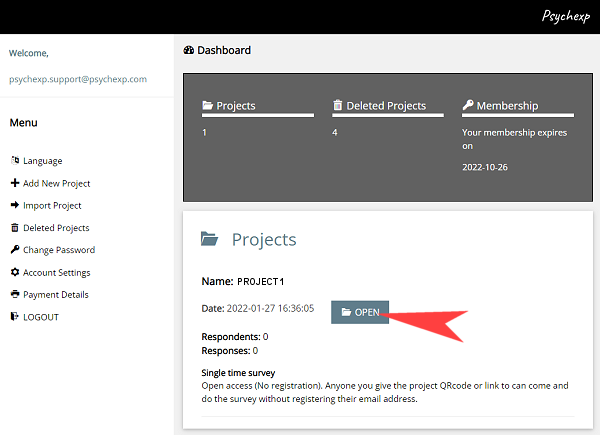
You will be returned to the dashboard, so then find the project you just created in the project list and click "Open".
STEP 3
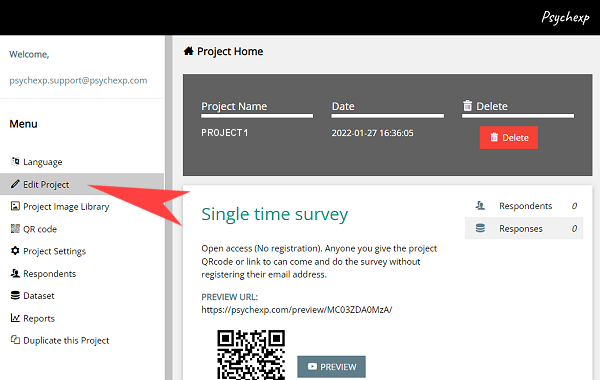
You are now on the project home page, so click on the "Edit Project" button from the side menu.
STEP 4
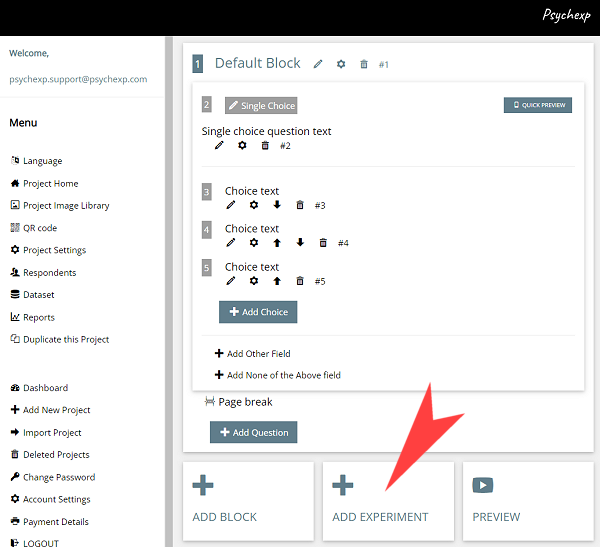
When you first create a project in Psychexp a block with one single choice question is inserted by default.
We are going to add the Stop Signal Task below this default block by simply clicking the "ADD EXPERIMENT" button and selecting "STOP SIGNAL TASK" from the list that is displayed.
STEP 5
A fully functional Stop Signal Task has now been inserted.
Let's take a look at the structure of the default experiment, and then see how you can customize it to make it your own.
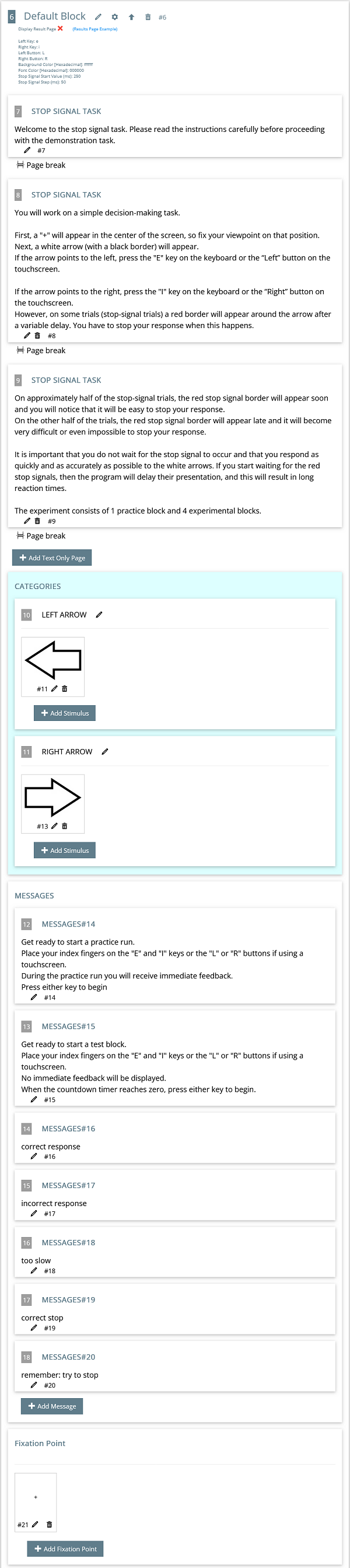
The entire experiment is housed inside of a single block named "Default Block". You can change the name of the block by clicking on the edit (pencil) icon next to the block name.
By clicking on the experiment block settings (cog) icon, you can make changes to the following settings of the experiment;
Left Key
Right Key
Left Button
Right Button
Background Color [Hexadecimal]
Font Color [Hexadecimal]
Stop Signal Start Value (ms)
Stop Signal Step (ms)
Display Result Page
Next you will see a text only information page that is shown to the participant before the experiment begins. This page is fully customizable by clicking the edit (pencil) icon. You can also add extra pages by clicking the "Add Text Only Page" Button.
Following the information page there are four sections. These four sections include all the components that will be used to build the flow of the experiment.
LEFT ARROW: You can change the name of the category to whatever you want, and add as many text or image stimulus as you require.
RIGHT ARROW: You can change the name of the category to whatever you want, and add as many text or image stimulus as you require.
MESSAGES: You can create as many messages as is required. These messages will be displayed to the participant during the experiment. At what point they will be displayed during the expeirment is set in the FLOW SECTION explained below.
FIXATION POINT: The fixation point is displayed prior to the stimulus being shown (optional). You can add as many text or image fixation points as you wish here and then allocate them in the FLOW SECTION explained below.
STEP 6
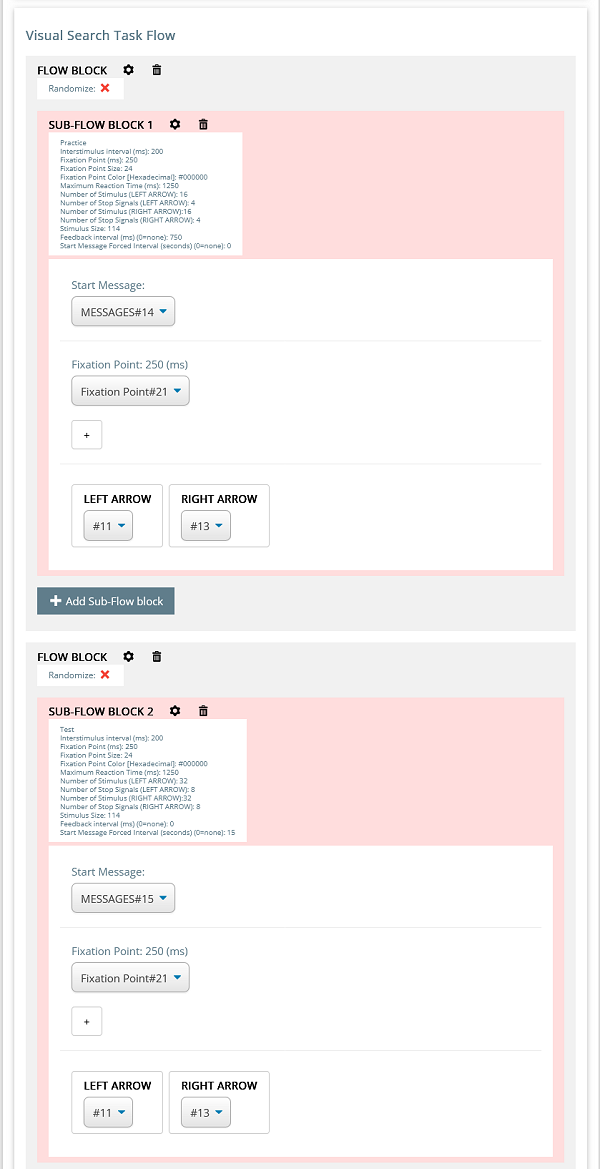
Now we will look at the flow of the Stop Signal Task. The flow comprises of Flow blocks and sub-flow blocks. The sub-flow blocks within a flow block can be randomized by clicking the Flow Block settings (cog) icon.
You can add as many blocks or sub-flow blocks as you wish to create your desired experiment.
The sub-flow block contains the following components.
Start Message: The start message is shown prior to the group of trials set in this sub-flow block. (optional)
Fixation Point: Set the number of milliseconds to display by clicking the settings (cog) icon.
LEFT ARROW - RIGHT ARROW: Select the stimulus you want to use from the dropdown menu in each category. Please note, if you edit the name of your category in the above step, the edited name will appear here in this section.
By clicking the sub-flow block settings (cog) icon, you can change the following settings.
Practice: Unchecking this box will make the sets displayed in this sub-flow block a test. The average response time for test sets only are included in the dataset.
Interstimulus interval (ms): This is the number of millseconds a blank interval is displayed prior to each fixation point being displayed.
Fixation Point (ms): This is the number of millseconds the fixation point will be displayed.
Fixation Point Size: Point size for text, or height in pixels for image.
Fixation Point Color [Hexadecimal]: Only used if the fixation point used is text.
Maximum Reaction Time (ms): Maximum length of time a stimulus is displayed on a go trial and a stop trial when no key is pressed.
Number of Stimulus: The total number of stimulus for the stipulated category. (go and stop signal total)
Number of Stop Signals: The number of signals from within "Number of Stimulus" that will become stop signals.
Stimulus Size: Point size for text, or height in pixels for image.
Feedback interval (ms): The length of time feedback is displayed. Feedback can be displayed on both practice or test trials by setting this field to a value other than zero.
Start Message Forced Interval (seconds): A start message is displayed before each group of trials. Setting this value disables key strokes for the set number of seconds, and forces the user to take a break until the countdown timer which is displayed under the start message reaches zero. Setting this to zero allows the user to proceed at any time without a forced break.
After you have made changes to the default experiment, you can see a live preview of the experiment by clicking the "Preview" button at the bottom of the page. You can preview the project as many times as you want. The preview screens are identical to the screens your participants will see when you distribute your project, however the data from a preview is not saved in the dataset.
STEP 7
Once you are happy with the design of your experiment you can then adjust the flow of your entire project by editing or deleting the default survey question block that was inserted when you initially made the project. You can also add more survey question blocks or even other experiment blocks under your current experiment by simply clicking on the "ADD BLOCK" or "ADD EXPERIMENT" buttons at the bottom of the page. The combination of experiments and survey questions that you can achieve is only limited by your own imagination!
PRO TIP Changing the order of the flow of survey question blocks and experiment blocks in your project is as easy as using the up and down arrow buttons that can be found at the top of each survey question or experiment block.
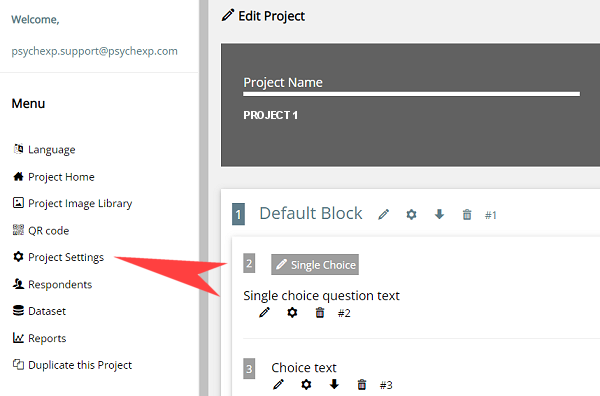
Before distributing your project to your participants be sure to adjust the project settings by clicking on "Project Settings" in the menu.
These are just a few of the many settings you can adjust:
Single or multiple time project participation
Require email registration
Set start and finish dates for participation
Record geolocation
Registration Page Logo
STEP 8
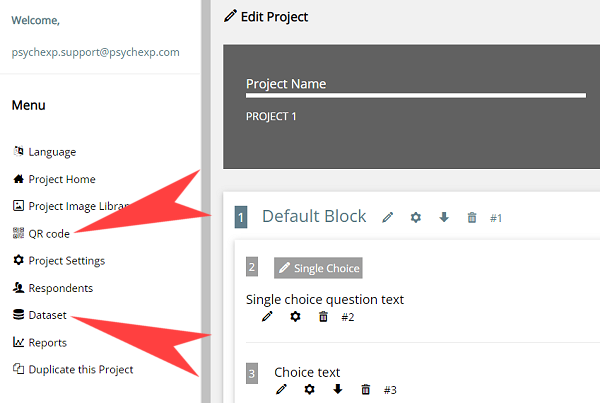
When you are ready to distribute your project to your participants, click on "QR code" in the menu to get the URL link or QR code for this project
PRO TIP Once a participant has responded to your survey or experiment, you are no longer able to make changes to the project in the "Edit Project" screen. Use the project "PREVIEW" button extensively to check your project prior to distributing it to any participants.
To view the data collected from your participants, click on "Dataset" in the menu.
The dataset will be downloaded in excel format
Dataset Explanation:
SSRT: p = Number of failed stop Trials (where a key was pressed) / Total number of stop trials n = Go trials response time total x p goRT(n) = nth value of ascending go trial response times mean SSD = stop signal delays total / number of stop signals SSRT = goRT(n) - mean SSD
SSRT was calculated using the original integration method (Verbruggen et al., 2013). Note that this version does not involve the replacement of Go omissions, distinguishing it from the "integration method with replacement" later recommended in the literature.
Verbruggen, F., Chambers, C. D., & Logan, G. D. (2013). Fictitious inhibitory differences: how skewness and slowing distort the estimation of stopping latencies. Psychological science, 24(3), 352-362.
CORRECT: GO TRIALS: 0=incorrect key 1=correct key STOP SIGNAL TRIALS: 0=key pressed 1=no key pressed
The default procedure for the stop signal task refers to the following paper. However, partial changes have been made to the experimental procedures and stimulus:
Logan, G. D., & Cowan, W. B. (1984). On the ability to inhibit thought and action: A theory of an act of control. Psychological Review, 91(3), 295–327.